



Using ScanAvenger Scanners with Shopify POS and Shopify Admin
Does ScanAvenger work with Shopify?
Yes. ScanAvenger scanners work with Shopify POS as standard HID (keyboard-emulation) devices, and they also work in the Shopify Admin app with one extra tap. No drivers or extra apps are needed.
[Video embed: ScanAvenger + Shopify: Full Compatibility Guide (horizontal)]
What you need
- A ScanAvenger barcode scanner. The steps on this page apply to all our models. The video above shows the SA9000 and SA9400 Series scanners.
- A device running the Shopify POS app: an iPhone, iPad, Android device, or Shopify POS terminal. Shopify POS runs the same app on every device, so the steps are the same on each one.
- Optional: a Shopify POS Hub, if you want to connect the scanner with a USB cable or USB Dongle.
Step 1: Turn on "Allow HID mode"
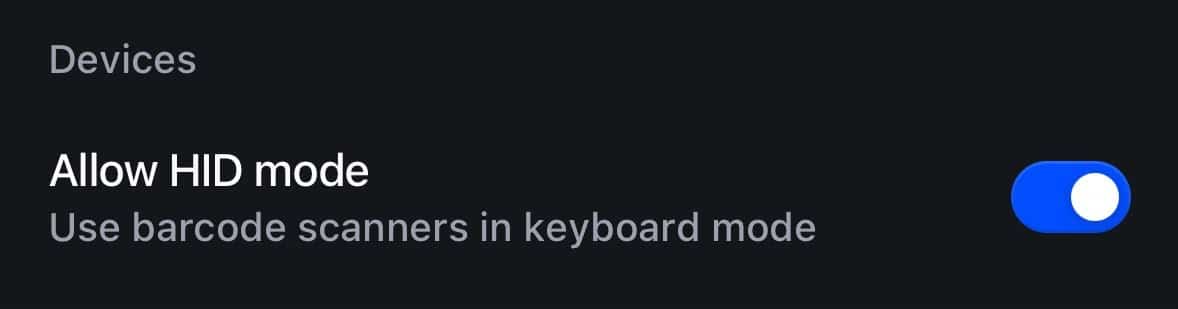
Allow HID mode lets Shopify POS accept scans from barcode scanners that work in keyboard mode, like ScanAvenger scanners.
- Open the Shopify POS app.
- Open the menu and tap Settings.
- Under Devices, turn on Allow HID mode.
Step 2: Connect the scanner
You can connect your scanner in one of two ways.
Option A: Bluetooth (iPhone, iPad, or Android)
- Scan the Bluetooth Mode barcode, then the Pair with Bluetooth barcode. The light on the scanner will flash blue.
- On your device, open the Bluetooth settings and look for ScanAvenger HID in the list of devices. Tap it to pair.
- When the blue light on the scanner stays solid, the scanner is connected.
You can find the pairing barcodes in the Quick User Guide that comes with the scanner.
Tip: if the Bluetooth connection is unstable, remove ScanAvenger HID from your device's Bluetooth list, turn Bluetooth off and on again, and repeat the steps above.
Tip: if the Bluetooth connection is unstable, remove ScanAvenger HID from your device's Bluetooth list, turn Bluetooth off and on again, and repeat the steps above.
Option B: Shopify POS Hub (USB)
- Connect the POS Hub power cord to a power source.
- Connect the Hub's USB-C or Lightning cable to your POS device.
- Plug the other end of that cable into the tablet port on the bottom of the Hub (not any of the other USB-C ports).
- Connect the scanner's USB cable, or its USB Dongle, to a USB port on the Hub.
- In the Shopify POS app, open the Connectivity panel.
- Tap the keyboard entry for the scanner.
- Tap Device type and select Barcode scanner.
The Hub disconnects for a moment while it updates this setting. This is normal, and it reconnects on its own.
Using the scanner in Shopify POS
- Scan to cart: from the home or checkout screen, just scan the product's barcode. The product goes straight into the cart, with no need to tap anything first.
- Products with variants: each variant (for example a different size or color) scans as its own item and is added to the cart correctly.
- 1D and 2D codes: both standard barcodes and 2D codes (such as QR codes) scan correctly.
- Search Orders: tap the search bar first, then scan.
- Search Customers: the search bar is already selected, so just scan.
The one thing to know: Shopify Admin app
The Shopify Admin app is built camera-first, so it doesn't automatically select a field for the scanner to type into, the way Shopify POS does.
Tap the field you want to fill first (for example, the search bar), then scan.
- Open the screen you want to use in Shopify Admin (for example, Products).
- Tap the search bar or the field you want to fill, so the cursor appears in it.
- Scan the barcode. The code appears in the field you selected.
This is simply how Shopify Admin is built, and it applies to any HID barcode scanner on the market, not just ScanAvenger.
What we tested
In our testing, high-volume repeated scans, multiple rapid scans in a row, 2D codes, and closing and reopening the app all performed reliably.
Troubleshooting
Nothing happens when I scan
- Check that Allow HID mode is turned on (Step 1).
- Check that the scanner is connected. Over Bluetooth, the blue light on the scanner should be solid, not flashing.
- In Shopify Admin or the Orders search, tap the field first, then scan.
The Hub connection dropped right after I set Device type
This is normal. The Hub briefly disconnects while it updates the setting, then reconnects on its own.
The on-screen keyboard disappeared on my iPhone or iPad
Your device treats the scanner as a keyboard, so it can hide the on-screen keyboard while the scanner is connected. To bring it back, quickly press the scan button on the scanner twice. Press it twice again to hide the keyboard.
Need help?
Our team is here to help. Reach out to us anytime:
scanavenger.com | helpdesk@scanavenger.com | +1 (424) 444-6929


 English
  Japanese